How to add a Mid-Semester Update
If you have deleted the pre-created Mid-Semester Update, or for any other reason just need to add one, here's how.
1. Go to your class on Edsby at https://asij.edsby.com/
2. Add a new Assessment

3. Make the name Sem 1 Mid-Semester Update (you can copy/paste that if it's easier)
4. (Optional) Change the Unit to Mid Semester.

5. Change the Assessment Type
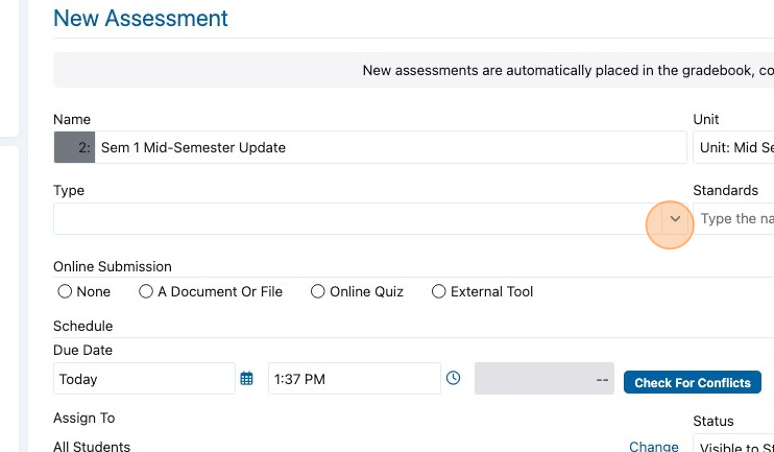
6. If Mid-Semester Update is not already on your list, click Add Custom

7. Type (or choose) "Mid-Semester Update" as the Assessment Type
8. Add your course Standards

9. The box with the arrow on it will let you select your standards
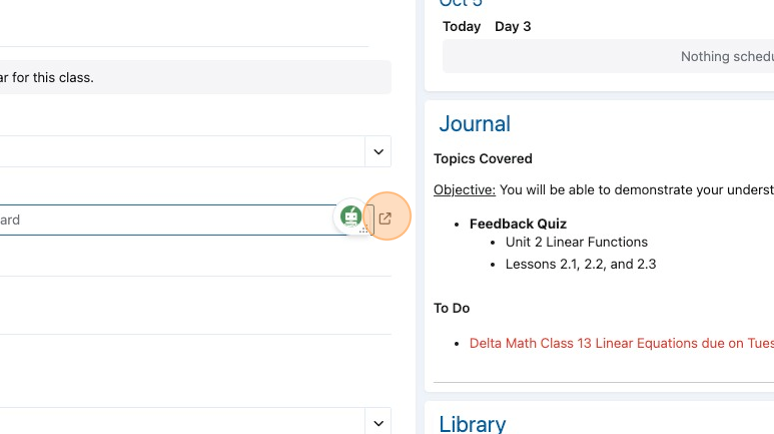
10. Click on each of your standards

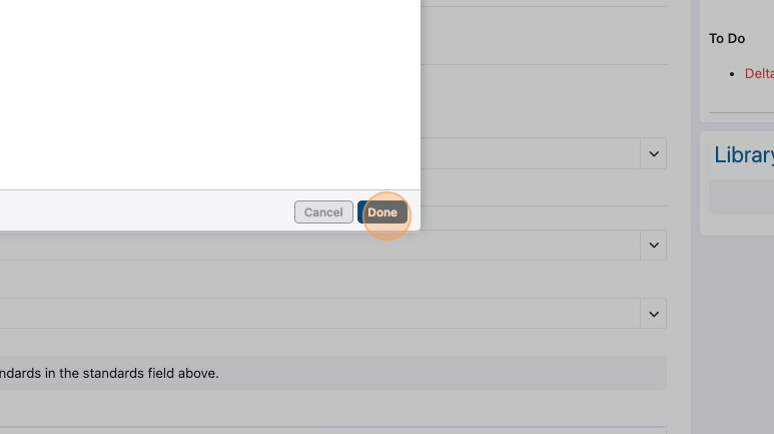
11. Select them all then hit Done to save.

12. Click the Done button.
13. Choose None for Online Submission

14. Enter the Due Date.
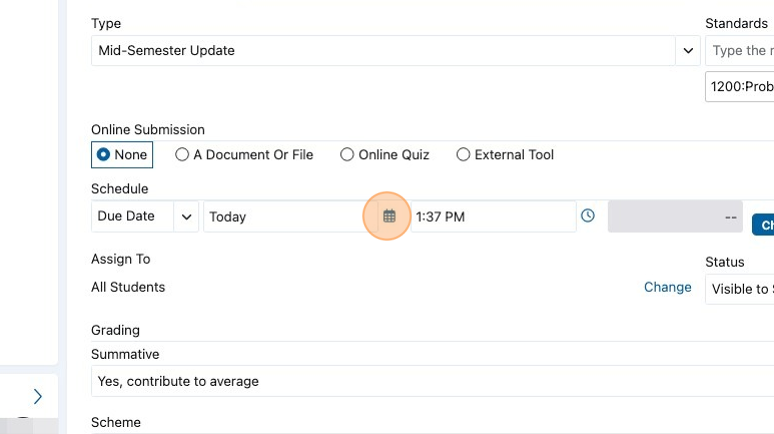
15. Add the Due Date. This is the date that will appear on student calendars, not the date that teachers need to have shared the results.

16. Make the Grading "No (Formative)"

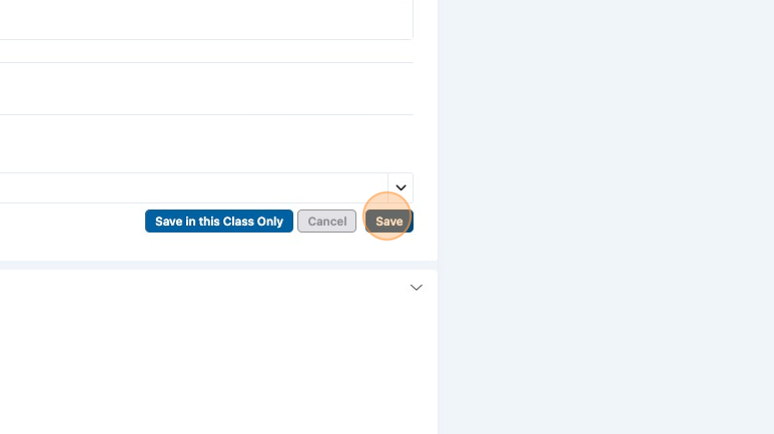
17. Click Save. You can Copy to all classes. If the different classes have different standards, you can edit the standards after copying. Or you can copy only to the classes with the same standards.

18. Choose which classes to Cross Post to.

19. If your Advisory is listed, you probably want to de-select that.

20. Save. You're done with adding!