How to edit the Mid Semester Update


If you have not deleted the Mid Semester Update that was in your grade book, here are instructions on how to edit it.


1. Navigate to your Edsby gradebook https://asij.edsby.com


2. Click "Sem 2 Mid-Semester Update"


Screenshot of: Click "Sem 2 Mid-Semester Update"


3. Change the name to Sem 1 Mid-Semester Update


Screenshot of: Change the name to Sem 1 Mid-Semester Update


4. Edit the standards by removing CHANGE ME and adding your course's standards.


Screenshot of: Edit the standards by removing CHANGE ME and adding your course's standards.


5. The box with the arrow loads your class standards


Screenshot of: The box with the arrow loads your class standards


6. Add all your standards by clicking on them.


Screenshot of: Add all your standards by clicking on them.


7. Click Done to save the standards.
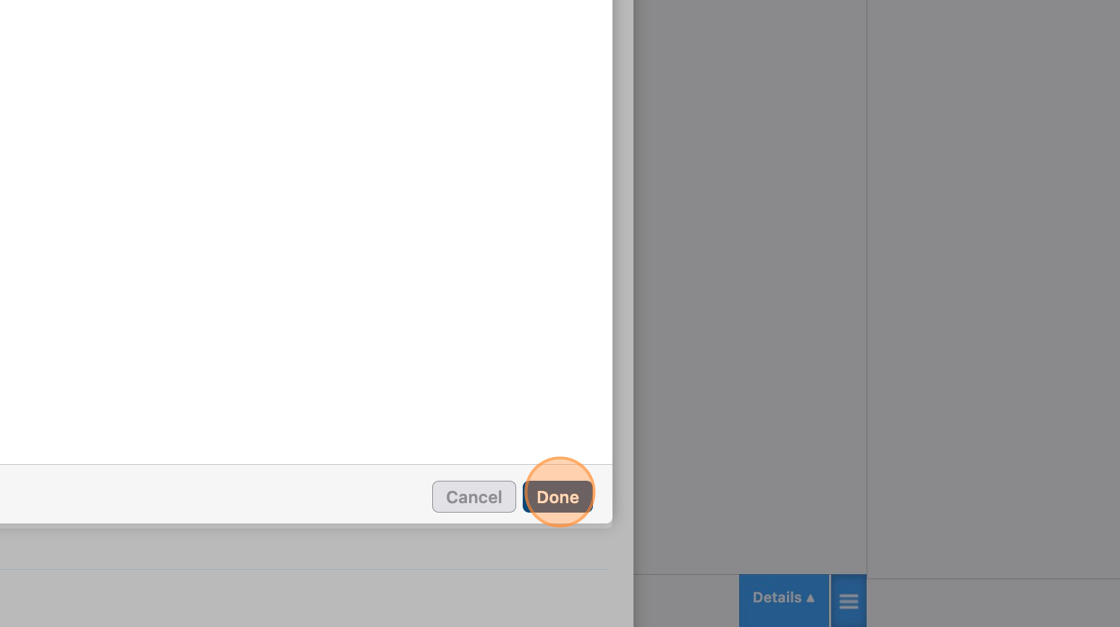

Screenshot of: Click Done to save the standards.


8. Be sure that you have removed CHANGE ME by clicking the X next to it.


Screenshot of: Be sure that you have removed CHANGE ME by clicking the X next to it.


9. Change the Due Date.


Screenshot of: Change the Due Date.


10. Add the Due Date. This is the date that will appear on student calendars, not the date that teachers need to have shared the results.
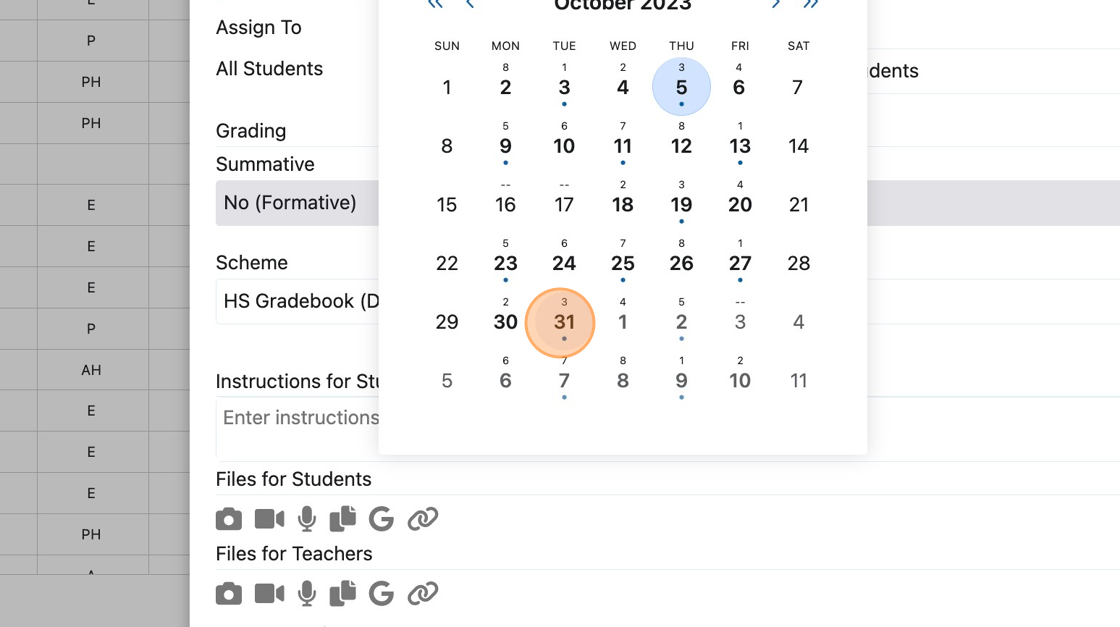

Screenshot of: Add the Due Date. This is the date that will appear on student calendars, not the date that teachers need to have shared the results.


11. Choose None for Online Submission.


Screenshot of: Choose None for Online Submission.


12. Click "HS Gradebook (Disabled)" - this is last year's old scheme. You need to change it to the new scheme.


Screenshot of: Click "HS Gradebook (Disabled)" - this is last year's old scheme. You need to change it to the new scheme.


13. Choose "HS Proficiency" - the dropdown menu might awkwardly pop up at the top of the page. It will stop doing that soon.
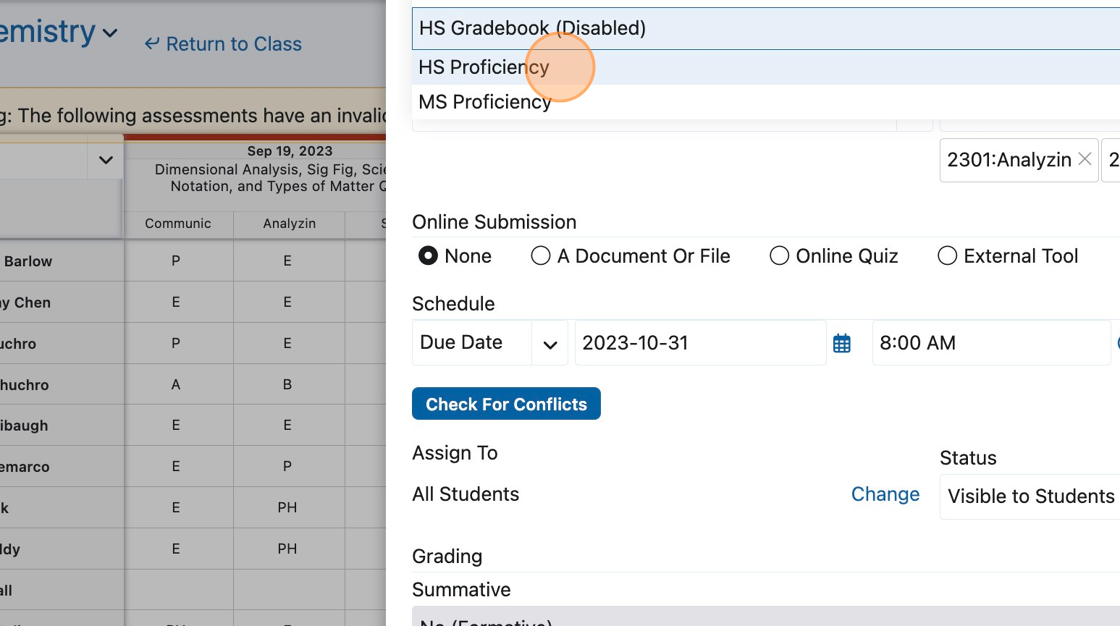

Screenshot of: Choose "HS Proficiency" - the dropdown menu might awkwardly pop up at the top of the page. It will stop doing that soon.


14. Make the Grading "No (Formative)"


Screenshot of: Make the Grading "No (Formative)"


15. Click Save. You can Copy to all classes. If the different classes have different standards, you can edit the standards after copying. Or you can copy only to the classes with the same standards.


Screenshot of: Click Save. You can Copy to all classes. If the different classes have different standards, you can edit the standards after copying. Or you can copy only to the classes with the same standards.


16. Choose which classes to Cross Post to.
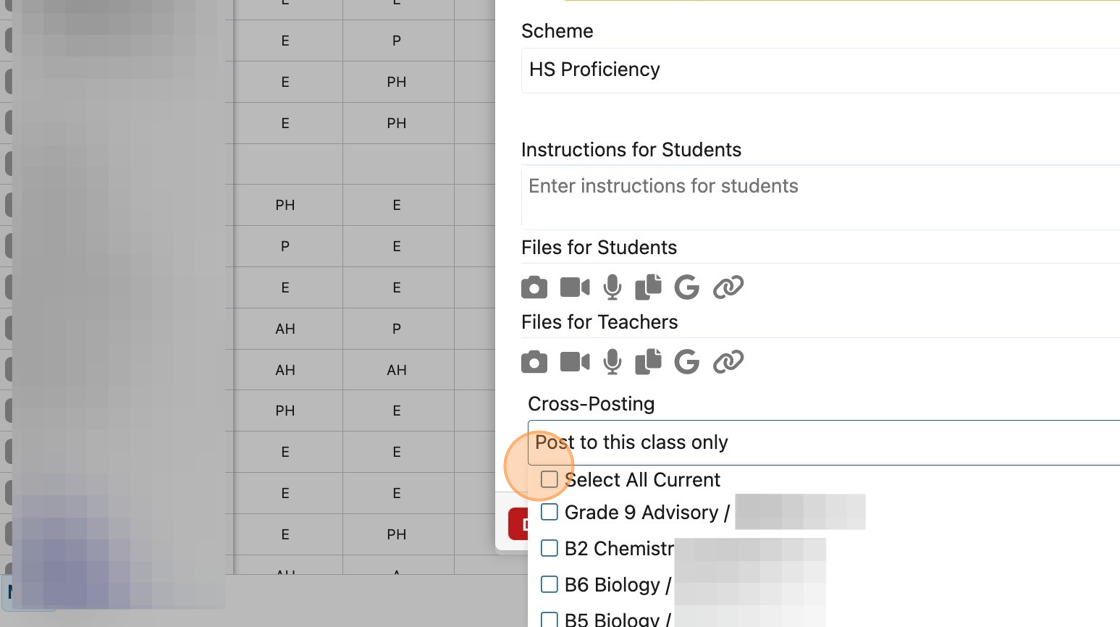

Screenshot of: Choose which classes to Cross Post to.


17. Save. You're done with editing!


Screenshot of: Save. You're done with editing!